
To make a QR code for a Google Form, publish the form, copy its responder link, and paste that link into a QR code generator. It takes about two minutes and is free. The important part is using the right link, because the address in your editing window will not work for respondents.
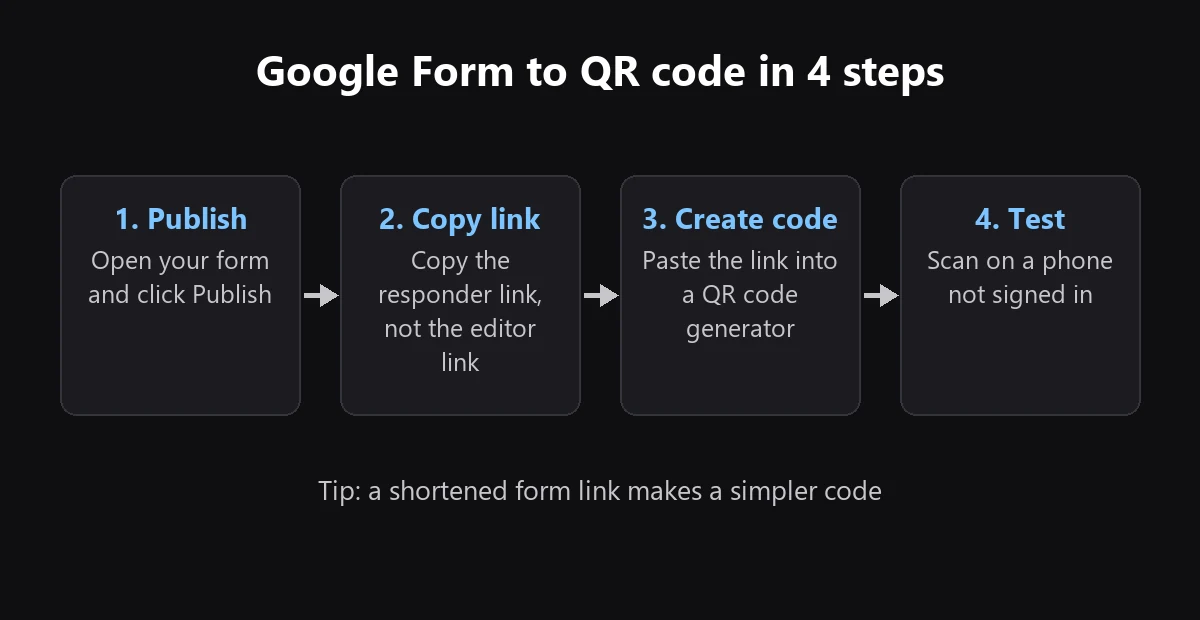
Step 1: Publish your form
- Open your form in Google Forms.
- Click Publish at the top right.
- Under Manage, choose who can respond. If you want anyone who scans the code to answer, make sure the form is open to anyone with the link.
Google may change these menus over time. If yours look different, see Google's publishing guide.
Step 2: Copy the responder link
Click Copy responder link, which is available from the Share or Published menu. Do not copy the address from your browser while you are editing, as that is the editor link.
If you are offered a Shorten URL option, use it. A shorter link makes a simpler code that is easier to scan when printed small. In our test, a 35-character short form link produced a 29 × 29 grid, while a 113-character full link needed 45 × 45.
Step 3: Create the QR code
- Open the free QR code generator and choose the URL tab.
- Paste your responder link and generate the code.
- Download SVG for print, or PNG for slides and screens.
Step 4: Test it before you share
Scan the code with a phone on mobile data, ideally one that is not signed in to your Google account. This shows you what respondents will see. Check that:
- The form opens in fill-in mode, not the editor.
- You can submit a test response without a sign-in prompt, unless you intended one.
- The printed code scans from the distance people will use. Our QR code size guide can help.
Delete your test responses afterwards.
Common problems
- "You need permission" or a sign-in page. Check who the form is published to, and whether it is limited to your organization.
- People are asked to sign in. Settings such as limiting people to one response, or questions with file uploads, require a Google account. Remove them if you need anonymous access.
- The form says it is no longer accepting responses. Open the form settings or the Responses tab and turn responses back on.
Do you need to see how many people scanned?
Google Forms counts submissions, but it cannot tell you how many people scanned your code and left without answering. A trackable QR code records scans, so you can compare a poster with a flyer. You can also point it to a new form later without reprinting. It needs a free account.
Frequently asked questions
Does Google Forms have a built-in QR code generator?
Forms gives you a link to share, so most people use a separate generator. Some browsers can also create a code for the page you are viewing, but check that the page is the responder view rather than the editor.
Do I need a new QR code if I edit my form?
Usually not. Changing questions keeps the same responder link, so existing codes keep working. Test the code after big changes to be sure.
Will the QR code stop working?
A static code will not expire, but it depends on the form staying available. If you delete the form or restrict it, people who scan will see an error. Read more in Do QR codes expire?
Can people fill out the form without a Google account?
Yes, if the form is open to anyone with the link and does not use a feature that requires sign-in, such as file uploads or a limit of one response per person.